
PRISM Live Studio: Games & IRL
NAVER Corp.Video Players & Editors
4.31.61K Reviews
- Version
- 5.3.1
- Installs
- 10.00M
- Age Rating
- Teen
Screenshots
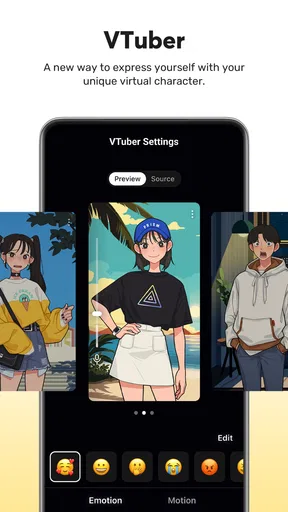
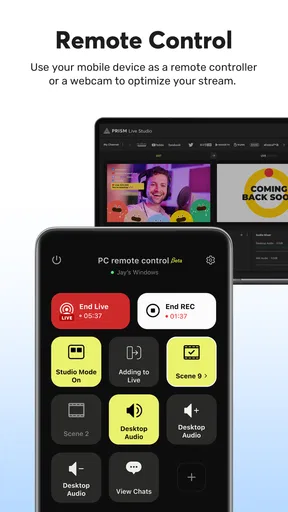
Our Review of PRISM Live Studio: Games & IRL
 Analysis by Appyee
I judge a streaming app by how quickly I can get from an idea to a live broadcast, how much control it gives me once I’m on air, and whether it fits the platforms I already use. PRISM Live Studio: Games & IRL is aimed at people who want to broadcast from a phone, whether they’re playing a game or sharing something happening around them. I’d consider it if I wanted a more guided setup than a bare-bones live button, but I wouldn’t assume that a mobile studio can replace every desktop streaming tool.
Choosing a mobile streaming workflow
The first useful question is where you plan to broadcast. NAVER Corp. makes this video-streaming and editing app for creators who want to go live on services such as YouTube, Twitch, and Facebook. That cross-platform focus is a real advantage when your viewers are spread across services. If you only ever stream to one place, though, the tools built into that platform may already cover your needs, and adding another app could mean more setup than benefit.
It is free to download, with in-app purchases ranging from $9.99 to $79.99 per item. That makes it easy to try the basic workflow before deciding whether you need anything beyond it; I would check the purchase details in the app before spending, rather than assume a paid item is essential. Its audience rating is Teen, so I’d also keep that in mind if a younger person will be using it or appearing in broadcasts.
The app has a 4.5 average from around 102,000 ratings, and it has been installed over five million times. Those figures suggest a sizeable audience, but they don’t tell me whether its particular controls suit my habits. The practical test is whether I can connect the platforms I use, make a readable layout, and manage a stream from the same phone without getting distracted by setup.
Where a phone-based studio earns its place
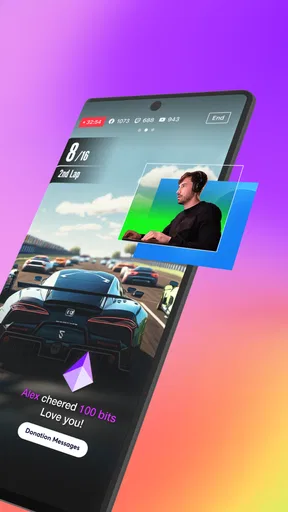
For a spontaneous broadcast, keeping the camera, game, and stream controls in one mobile workflow can be more convenient than setting up a separate computer-based production. I can imagine using it to show a short gaming session to friends, or to share a local event while moving around. The app’s focus on both gaming and real-life streaming makes that mix feel central rather than an awkward afterthought.
A useful habit is to prepare the parts viewers notice before going live: choose a simple overlay, make sure any text is legible on a small screen, and decide what you want the opening moments to look like. Text can help identify a stream or give viewers context, but too many visual extras compete with the game or scene. I’d start with only what serves the broadcast, then add more after I know the phone can handle the workflow comfortably.
Multistreaming is most valuable when you have a reason to be present on more than one service—for example, an established audience on one platform and people you’re trying to reach on another. It can save repeating the same session, but it also divides attention: comments and community expectations may be spread across destinations. Before relying on it, I’d do a private or low-stakes test of account connections and check where I can actually keep up with audience responses.
Small decisions that make a live session smoother
For a gaming stream, I’d plan a short test before the session I care about. Open the game, check that the broadcast layout leaves important interface elements visible, and confirm that I can find the controls without leaving the action for long. A phone is a compact production setup, but its screen is also where the game and streaming tools compete for attention. A simpler scene can be more useful than a decorated one if I’m playing something that needs focus.
For an everyday IRL example, imagine wanting to show friends a community event while walking between spots. I’d decide in advance when I’m comfortable appearing on camera and what I’m willing to show in the background. I’d also take a moment to check the framing before going live; a quick glance can prevent a long stretch of viewers seeing an unhelpful angle. Mobile broadcasting makes spontaneous sharing easier, but it doesn’t remove the need to think about privacy and surroundings.
Network conditions deserve a similar bit of planning. Streaming over Wi-Fi or mobile data is part of the app’s intended use, but no mobile studio can make an unreliable connection dependable. If the stream matters, I’d choose the most stable connection available and avoid treating a short successful test as proof that a longer broadcast will behave identically. Having a fallback plan—such as postponing a non-urgent stream—is less frustrating than trying to rescue a poor connection while viewers wait.
When another kind of tool is the better fit
The usual alternatives fall into two broad groups: a platform’s own live feature and a more involved desktop streaming setup. A built-in platform option can be the simplest choice when I want to broadcast to one service and don’t need extra scene or audience presentation controls. A desktop workflow can make more sense when the production depends on several sources, detailed scene management, or controls that are easier to handle away from the phone. I wouldn’t choose a mobile app just because it has more buttons; I’d choose it when mobility and quick setup matter more.
There is also a trade-off in managing several platforms. Reaching viewers in more than one place sounds efficient, but it may complicate moderation and conversation. If I can’t follow comments across destinations while playing or filming, multistreaming could make the session feel less personal. For a small, interactive broadcast, one platform may serve the audience better than several at once. For a planned event where broad reach matters more than answering every comment, the balance may be different.
Editing and presentation options are useful only when they fit the moment. Filters, text, and music can help establish a mood, yet each extra choice adds something to manage before or during a live session. I’d prepare a repeatable basic layout for regular streams and keep experimental changes for a test broadcast. That way, a casual session doesn’t turn into a prolonged round of adjustments, and a viewer-facing change is less likely to surprise me once I’m already live.
What to check before making it your regular setup
If you’re wondering whether it works for a first-time streamer, I think it can be a reasonable place to learn the basic rhythm of going live: prepare, check the scene, start the broadcast, and stay engaged. The main caveat is that an approachable interface doesn’t automatically make every production decision easy. I’d practice with a short, low-pressure session first, especially if I planned to stream a game and manage comments at the same time.
If you’re deciding whether to move from another mobile streaming app, the important cost is not just money. You may need to reconnect accounts, rebuild your layout, and get used to where controls sit. I’d switch only after checking that the services I rely on are available in my intended workflow and after testing a replacement layout. Keeping the first broadcast on the new setup short makes it easier to spot friction before it affects an important stream.
PRISM Live Studio is currently at version 5.1.5 and requires Android 10 or later. Those details matter if you’re deciding whether an existing device can run it; I’d check the operating-system requirement before planning a broadcast around an older phone. The app is also available for iOS, so the right choice depends partly on which device you intend to use. Either way, the real test is how comfortably your device handles your chosen content and controls together.
A practical recommendation for creators
I’d recommend this app to mobile-first creators who want to bring gaming and real-world moments into a live broadcast, particularly if they have a reason to reach audiences across multiple services. I’d also suggest it to someone who is curious about streaming but wants to try a phone-based workflow before building a more involved setup. Start with one destination, a clean scene, and a short test; add complexity only when you know what your viewers need.
I’d skip it if your preferred platform already gives you everything you need, if you depend on extensive desktop-style production controls, or if managing a phone while filming would distract from the event itself. The ability to go live from a mobile device is not automatically a win when stability, intricate production, or focused audience interaction matters more. In those cases, a simpler platform-native option or a computer-based setup may be a better match.
Getting Started with PRISM Live Studio
First things first, downloading and setting up PRISM Live Studio: Games & IRL is a breeze. Available for both Android and iOS, you can find it easily on the Google Play Store or the App Store. Once installed, the app greets you with a sleek, intuitive interface that even a newbie can navigate without feeling overwhelmed.
The app is designed with simplicity in mind. You can create an account or log in using your existing social media credentials. Within minutes, you're ready to start broadcasting your epic gaming sessions or spontaneous real-life events. Talk about convenience!
Features That Stand Out
Now, let’s dive into what makes this app tick. One of the standout features is its ability to stream in high quality, whether you’re on Wi-Fi or mobile data. Say goodbye to pixelated or lagging streams. The app optimizes your connection to ensure your audience gets the best viewing experience.
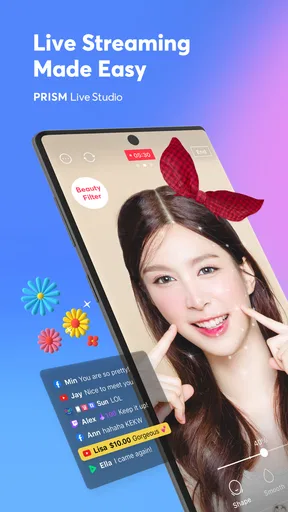
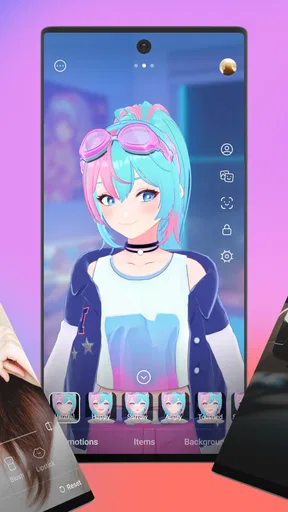
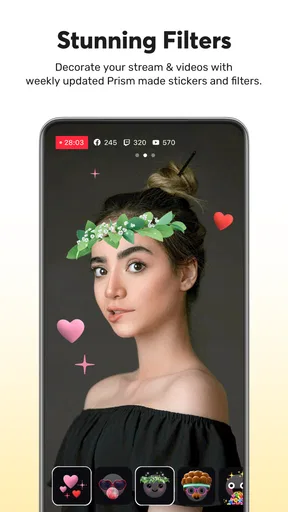
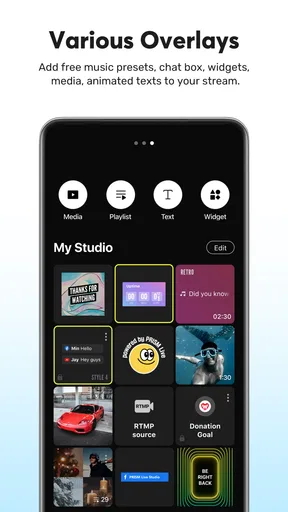
PRISM Live Studio also offers a plethora of editing tools. From filters that add a pop of color to your stream, to text overlays that help you engage with your viewers, the app has got you covered. You can switch between scenes effortlessly, and even add music to your streams, creating a vibe that’s uniquely yours.
Multistreaming Made Easy
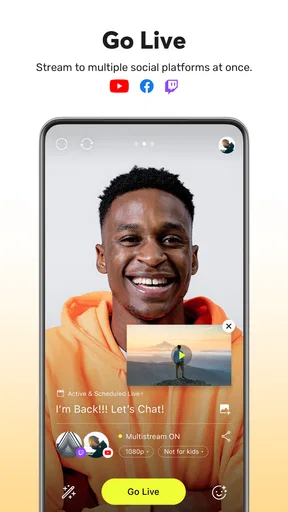
For those who love to reach a wider audience, multistreaming is where PRISM Live Studio shines. You can broadcast to multiple platforms like YouTube, Twitch, and Facebook simultaneously. It’s like hitting three birds with one stone! This feature is especially useful if you’re trying to grow your audience across different platforms.
Setting up multistreaming might sound complicated, but the app simplifies the process. With just a few taps, you can link your accounts and start streaming to all your favorite platforms. It’s efficient and saves a lot of time.
Engaging with Your Audience
Interaction is key to building a loyal audience, and PRISM Live Studio doesn’t disappoint. The app allows real-time chat with your viewers, letting you connect and engage with them as you stream. This feature is crucial for creating a community around your content.
You can also incorporate viewer comments directly into your stream, making your audience feel like they’re part of the action. Whether you’re gaming or sharing a live event, this level of interaction adds a personal touch that your viewers will appreciate.
Conclusion: Stream with Ease
In a world where content is king, having the right tools to share your journey is essential. PRISM Live Studio: Games & IRL combines functionality and simplicity, making it a top choice for anyone looking to step up their streaming game. Whether you’re a seasoned streamer or just starting, this app has something for everyone.
So, if you’re ready to bring your gaming escapades and real-life stories to the world, give PRISM Live Studio a whirl. It might just be the streaming sidekick you've been searching for. Happy streaming!
Verdict
Strengths of PRISM Live Studio: Games & IRL
- User-friendly interface, easy for beginners.
- High-quality streaming with low latency.
- Supports multi-platform broadcasting.
- Customizable overlays and effects.
- Real-time chat interaction with viewers.
Limitations of PRISM Live Studio: Games & IRL
- Can be resource-intensive on older devices.
- Limited customization options for free version.
- Occasional connectivity issues reported.
- Advanced features require in-app purchases.
- Some features need a strong internet connection.
Other Releases by NAVER Corp.
View All
네이버 - NAVER
Books & Reference3.5

BAND - App for all groups
Social4.8
Similar Picks in This Category
View All
Google TV
Google LLC3.9

iTunes
Apple4.7

YouTube
Google LLC3.8

MX Player
Amazon Mobile LLC4.2

CapCut - Video Editor
Bytedance Pte. Ltd.3.5

PLAYit-All in One Video Player
PLAYIT TECHNOLOGY PTE. LTD.4.5
You May Also Like
View All
Frequently Asked Questions
What is PRISM Live Studio, and what are its main features?
PRISM Live Studio is a versatile app designed for live streaming and video recording. It supports both Android and iOS platforms, enabling users to stream games and real-life events with ease. Key features include multi-streaming capabilities, customizable overlays, and real-time effects, allowing creators to engage audiences with professional-quality broadcasts.
Is PRISM Live Studio suitable for beginners in live streaming?
Yes, PRISM Live Studio is beginner-friendly, offering an intuitive interface that simplifies the streaming process. It provides step-by-step guidance for setting up streams, and its user-friendly tools make it easy for novices to create polished content without needing extensive technical knowledge.
Does PRISM Live Studio support multi-platform streaming?
Absolutely. PRISM Live Studio allows users to stream simultaneously across multiple platforms such as YouTube, Twitch, and Facebook. This feature maximizes audience reach and engagement, making it a popular choice for content creators looking to expand their viewer base efficiently.
Are there any costs associated with using PRISM Live Studio?
PRISM Live Studio is free to download and use, with many features available at no cost. However, there are optional in-app purchases and subscription packages that provide access to premium features, such as advanced editing tools and additional broadcast options, for those who want to enhance their streaming experience.
What are the system requirements for PRISM Live Studio?
To run PRISM Live Studio smoothly, Android users need a device with Android 5.0 or later, while iOS users require iOS 11.0 or later. Adequate device performance and a stable internet connection are recommended for optimal streaming quality, especially when broadcasting high-definition content.
